Description:
Issues, defects and tasks (items) can be tracked in Insite using their status. There are a range of default status groups and it is also possible to create custom groups of status options. For more information on this, see Customise status options.
An item's status is a great indicator of its condition, however, when viewing all of the items in a list or section as a collective, the status is sometimes not enough to understand where the audit is. Instead, you might want to use a score to get a better understanding of a list's overall position.
With Insite, you can attach scores to custom status options so that you can achieve this. A great example would be a condition report with status options, Poor, Average, Good. You might add scores as follows:
- Poor - 0
- Average - 5
- Good - 10
Over 4 items there is a potential for 40 points, however, if one item has the status Poor and another Average. This would mean that the total score for the inspection is 25 (0 + 5 + 10 + 10). Therefore, the inspection scored 25/40 or 62.5%.
This article shows how to add and update the scores of a status.
Notes:
- You can only add scores to custom status groups. It is not possible to add scores to the default status groups, Progress, Compliance & Score.
Guide:
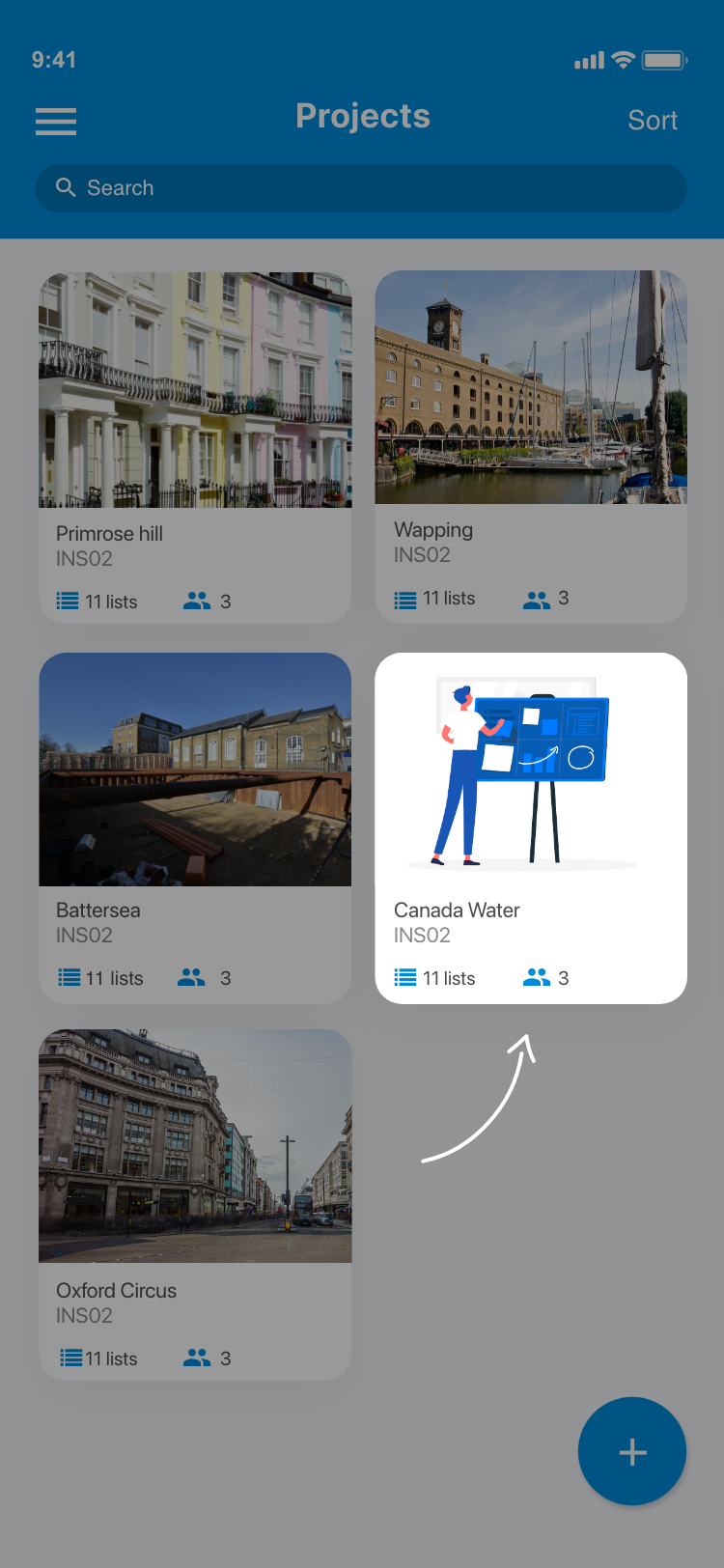
1.1. From the home screen go to Your project.
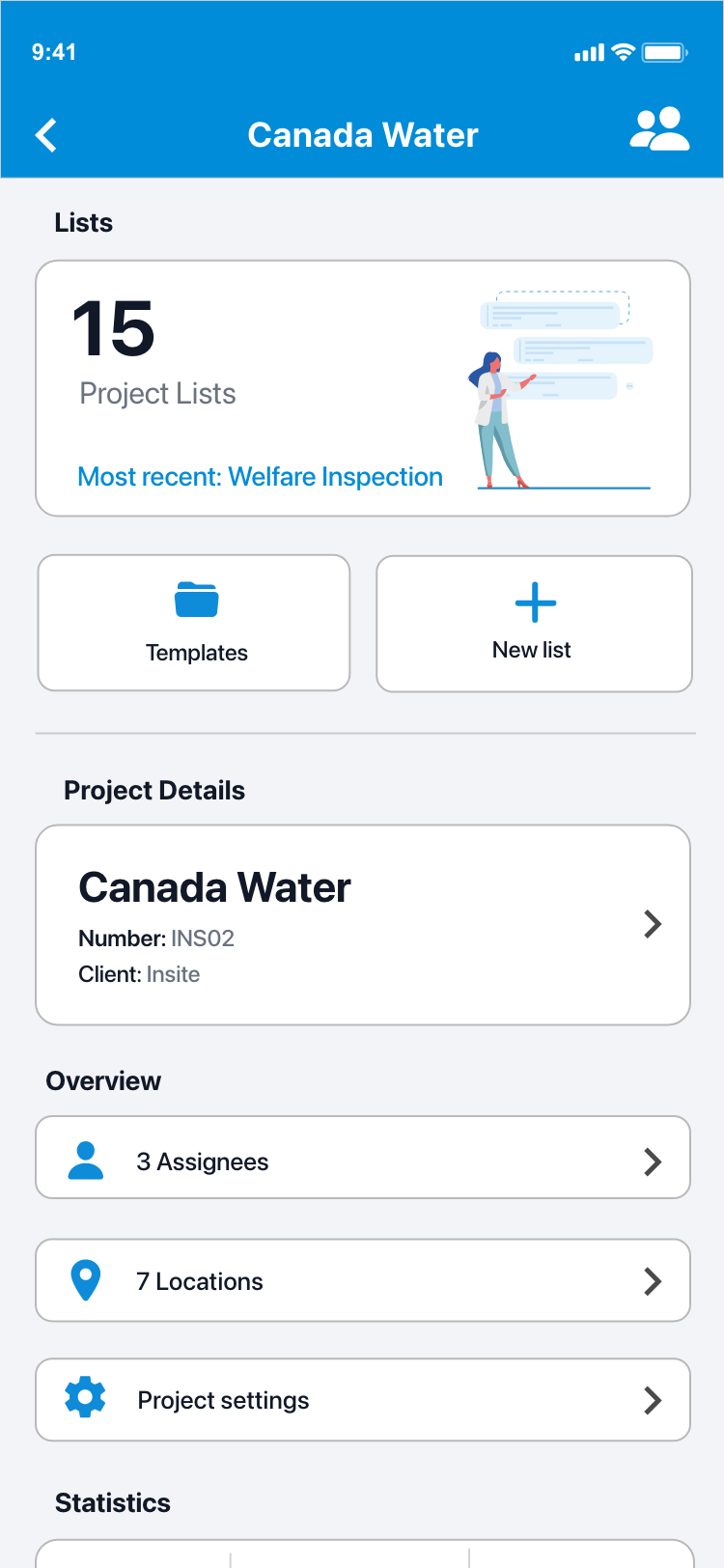
1.2. You will now be presented with the project overview screen.
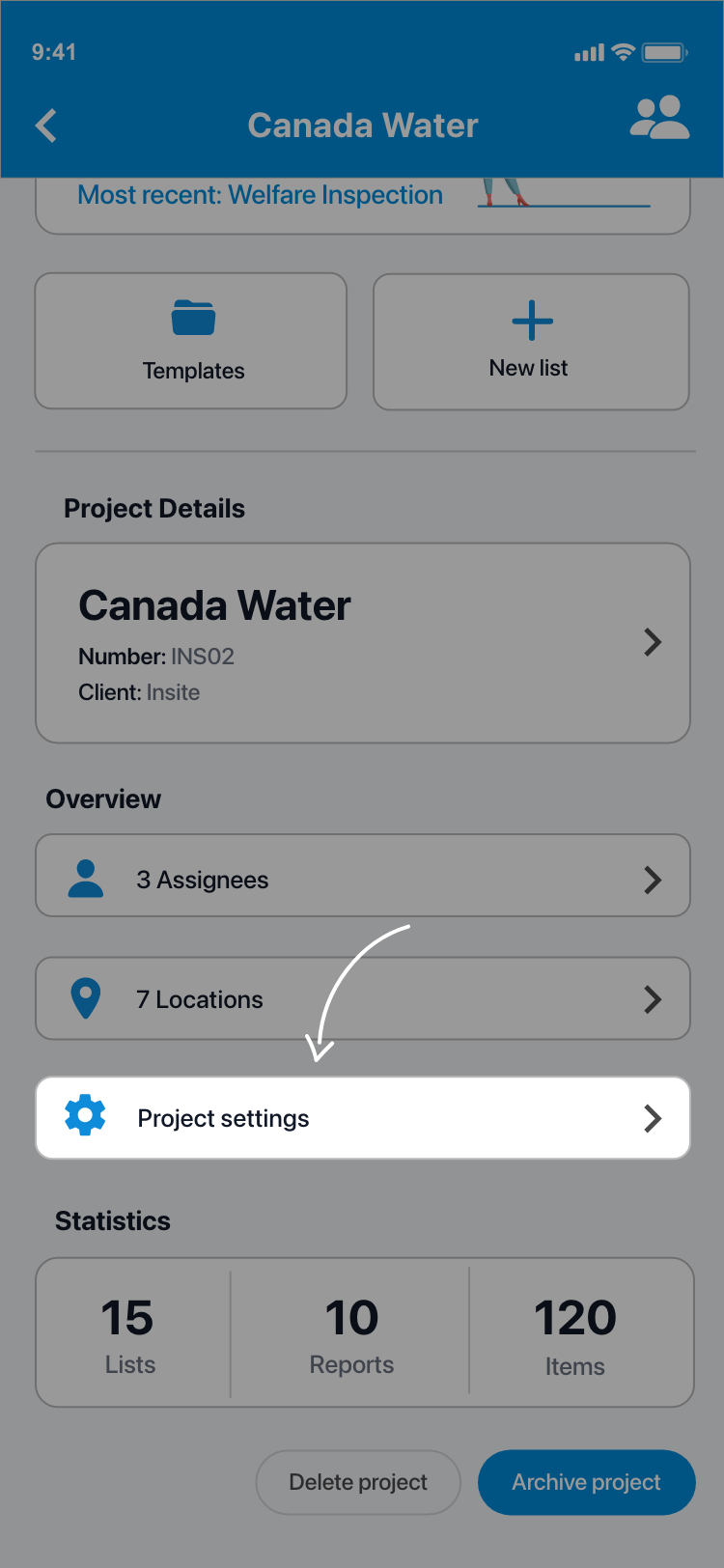
1.3. Tap Project settings under the locations card.
1.4. Go to Status options. You will now be presented with all of the available status groups for the project. By default, you will find the following options: Progress, Compliance & Score. You may also find some custom groups. If you have no custom groups, see Customise status options for details on how to create some. Note, you can only add scores to custom status groups.
1.5. Find the status group which you would like to add scores to (or create a new one). Tap on each of the options in your new group to be taken to the Edit option screen.
1.6. Add a score to the status using the input field Score under the Additional settings heading.
1.7. Tap Save in the top right of your screen when you are done. Your status option will be updated. Repeat steps 7 & 8 for each option in your group. You can now use your new group on your lists & items - see Using custom status options & Change an item's status.
Comments
0 comments
Please sign in to leave a comment.