Description:
When creating a List you can choose to create one from a list template. See Create a list template.
Notes:
Only Project Admins & Internal users are able to create new Lists and access a project's templates.
Contents:
This article covers two ways to create a list from a template:
Guide:
1. Create a list from within the template
1.1. From the home screen go to Your project - see Create a project.
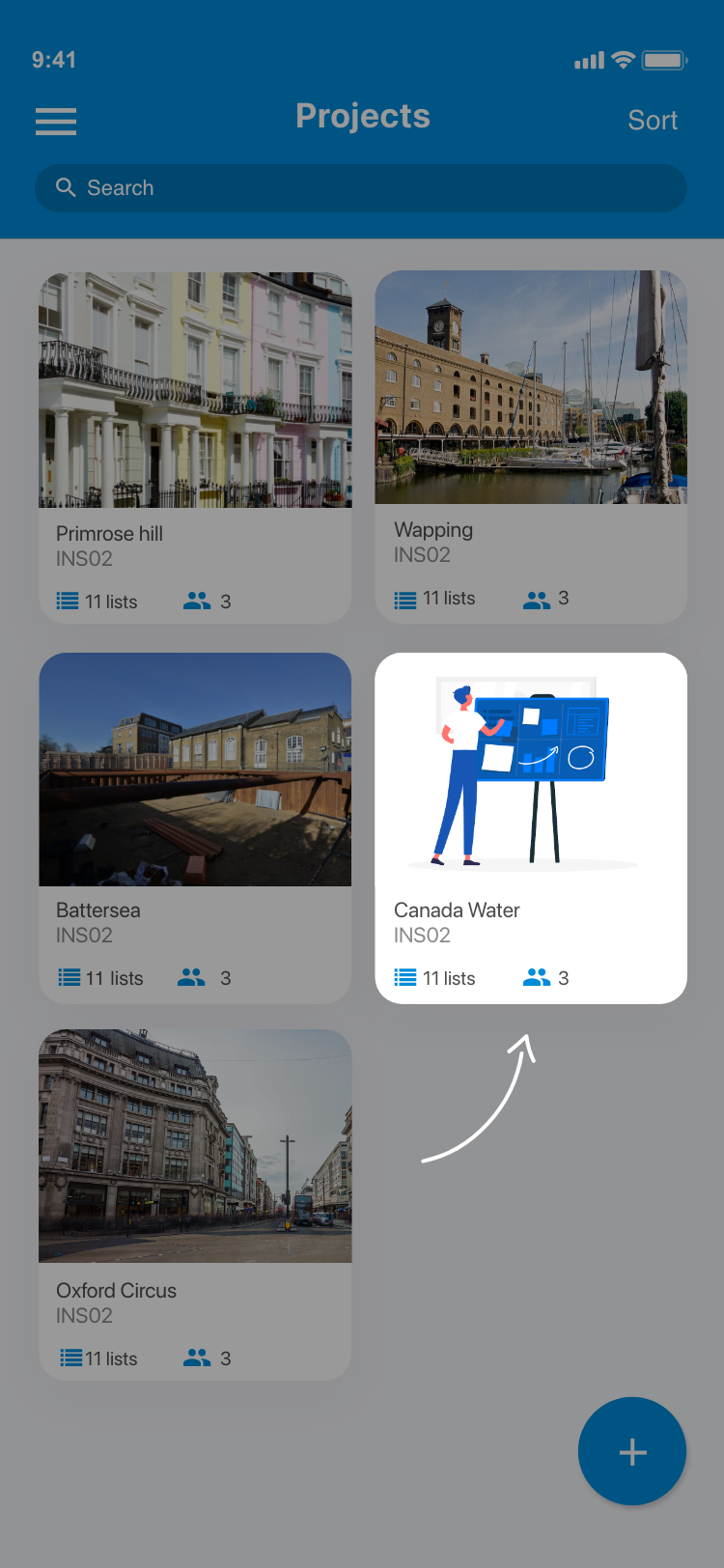
1.2. Once you have opened your project tap the Templates card under the Lists heading.
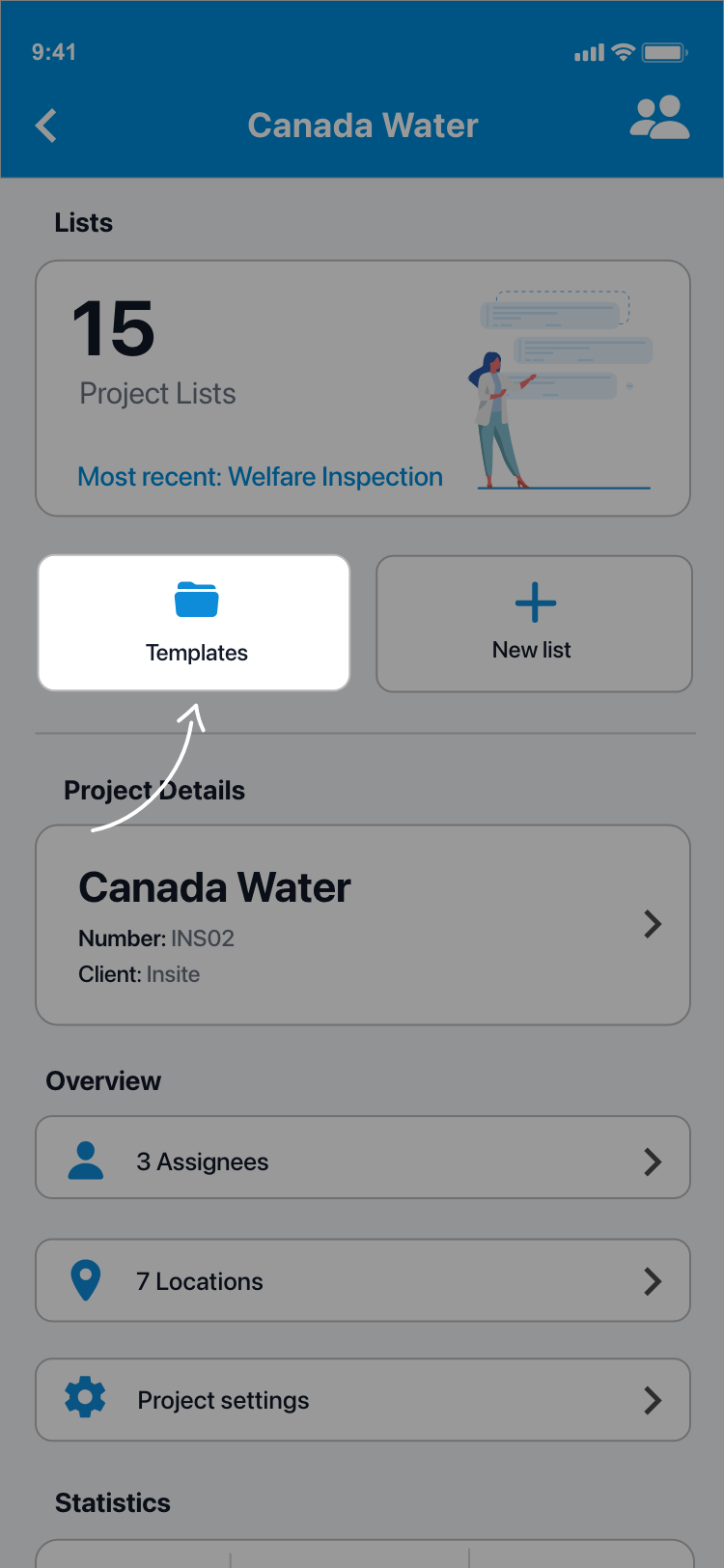
1.3. Choose a template from which you would like to create a new list.
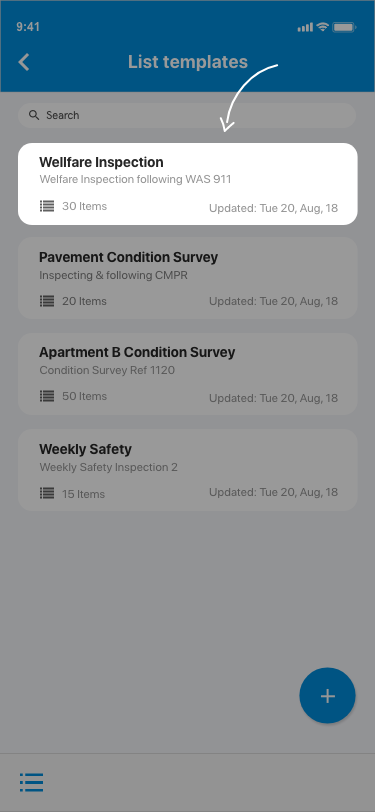
1.4. Press Play in the top right of your screen to create a new list using the current template.
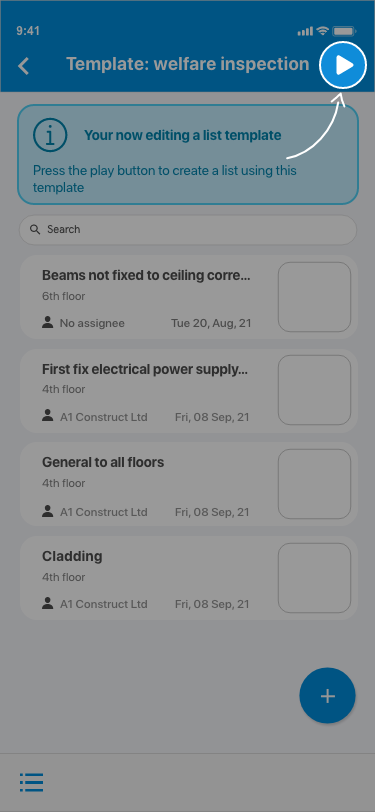
1.5. You will now be taken to the new list screen where you can enter the details and choose a privacy setting. See Create a list. Tap the ✓ in the top right of your screen when you are done. Your new list will have been created and will be populated with the items from the template.
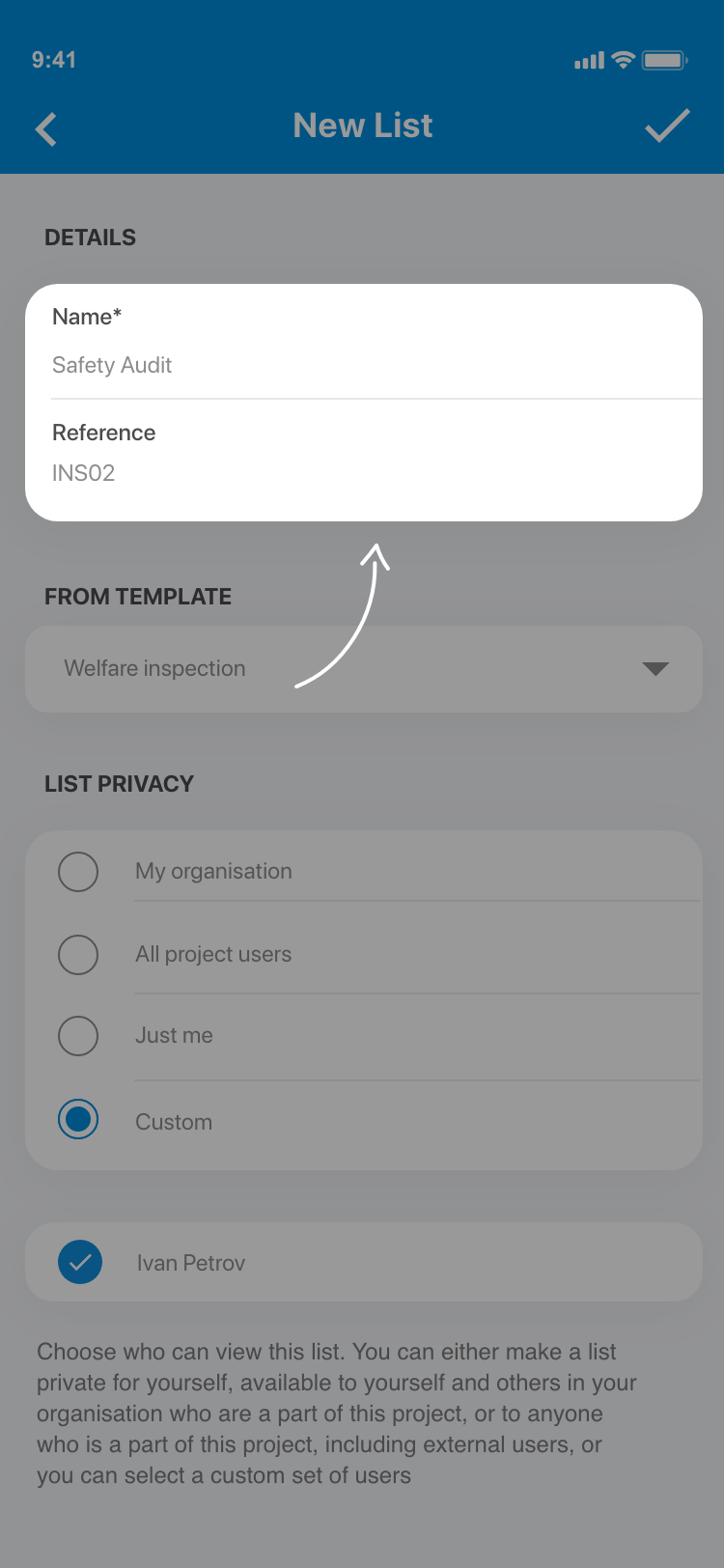
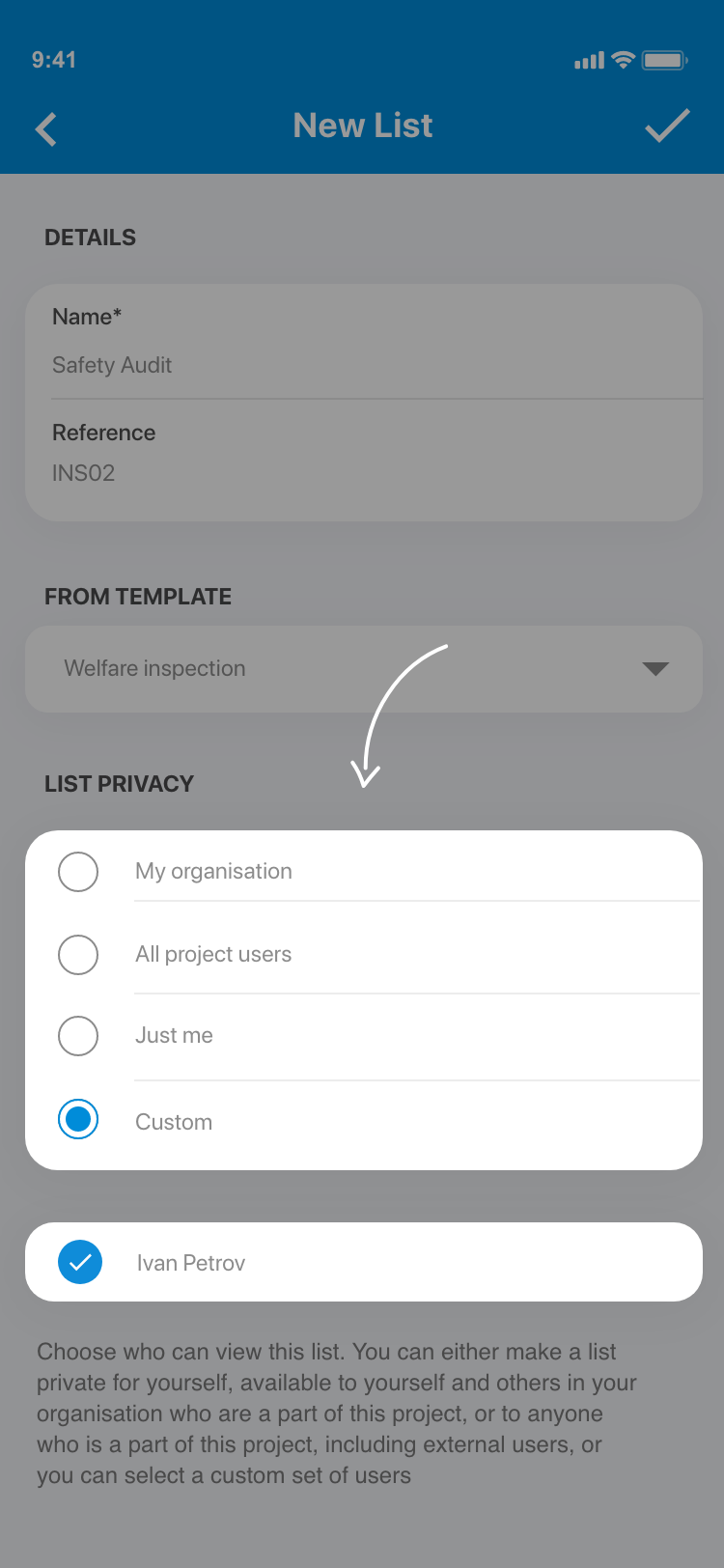
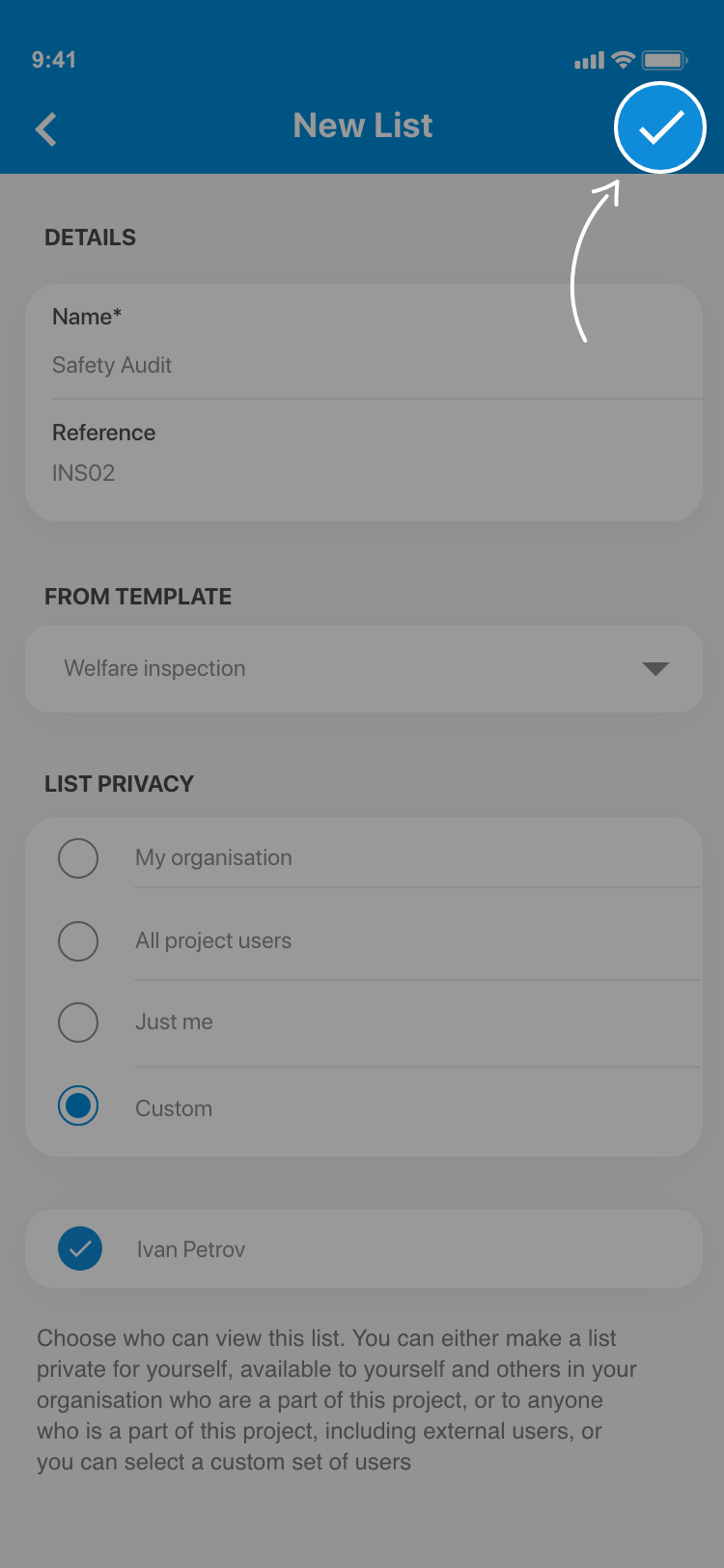 .
.
2. Create a list from the project dashboard
2.1. From the home screen go to Your project - see Create a project.
2.2. You will now be presented with the project overview screen.
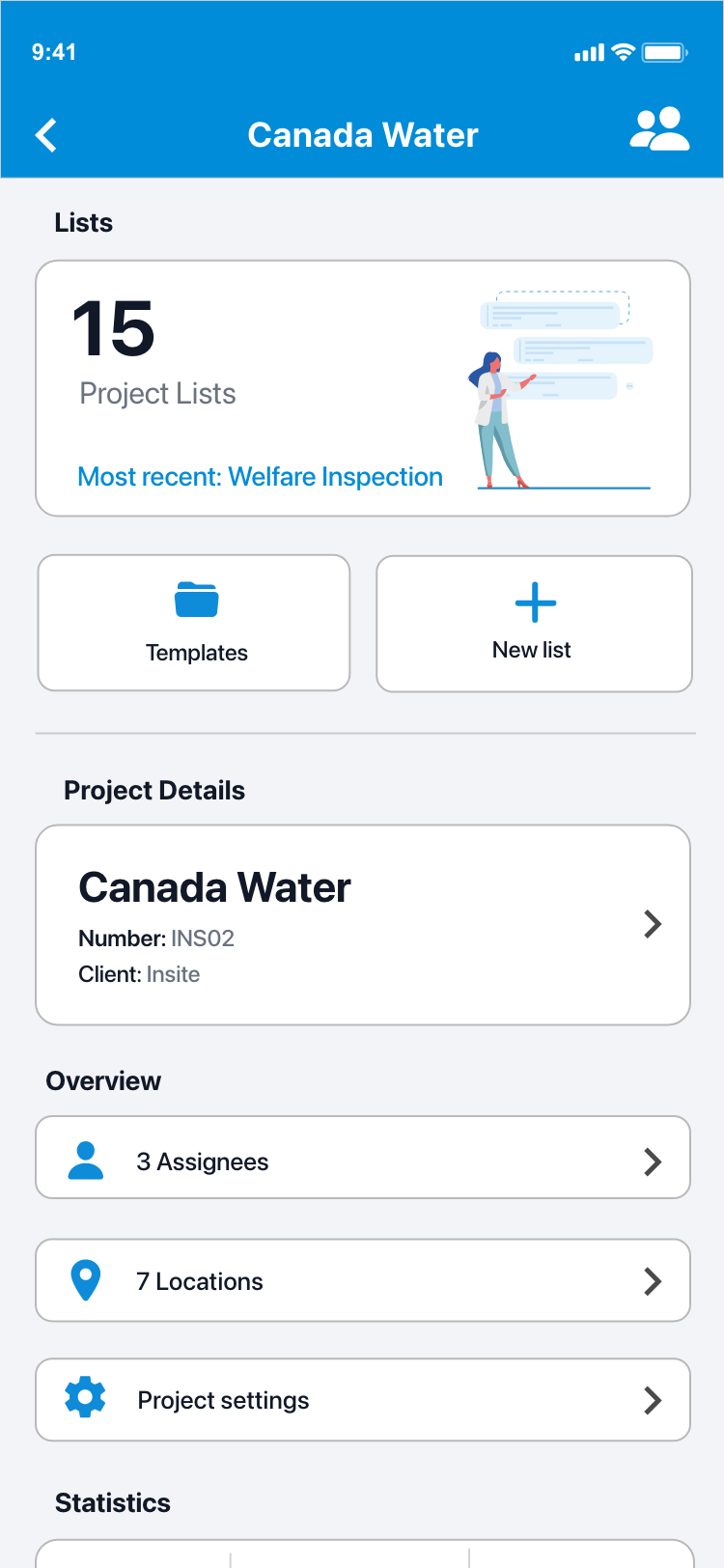
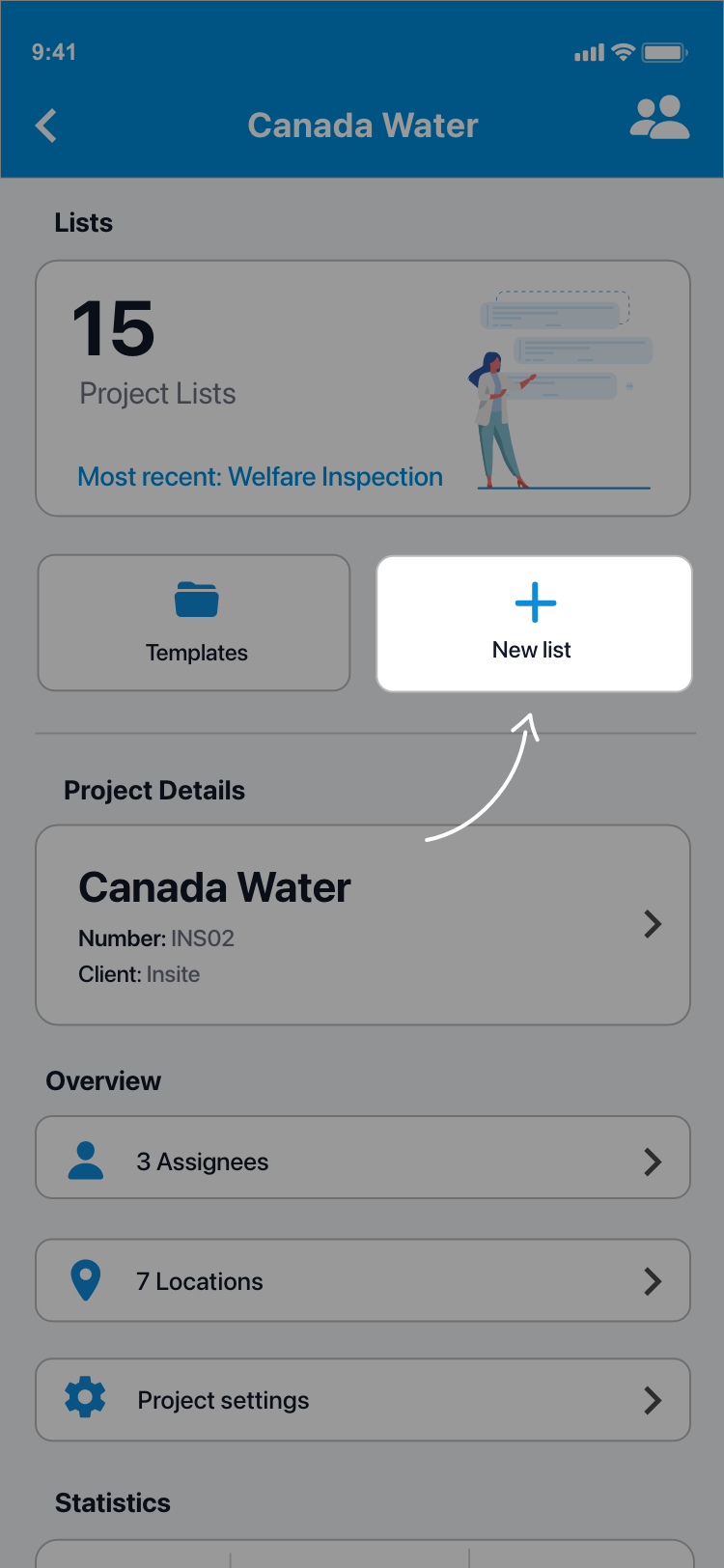
2.3. Create a new list from the project overview screen using the shortcut.
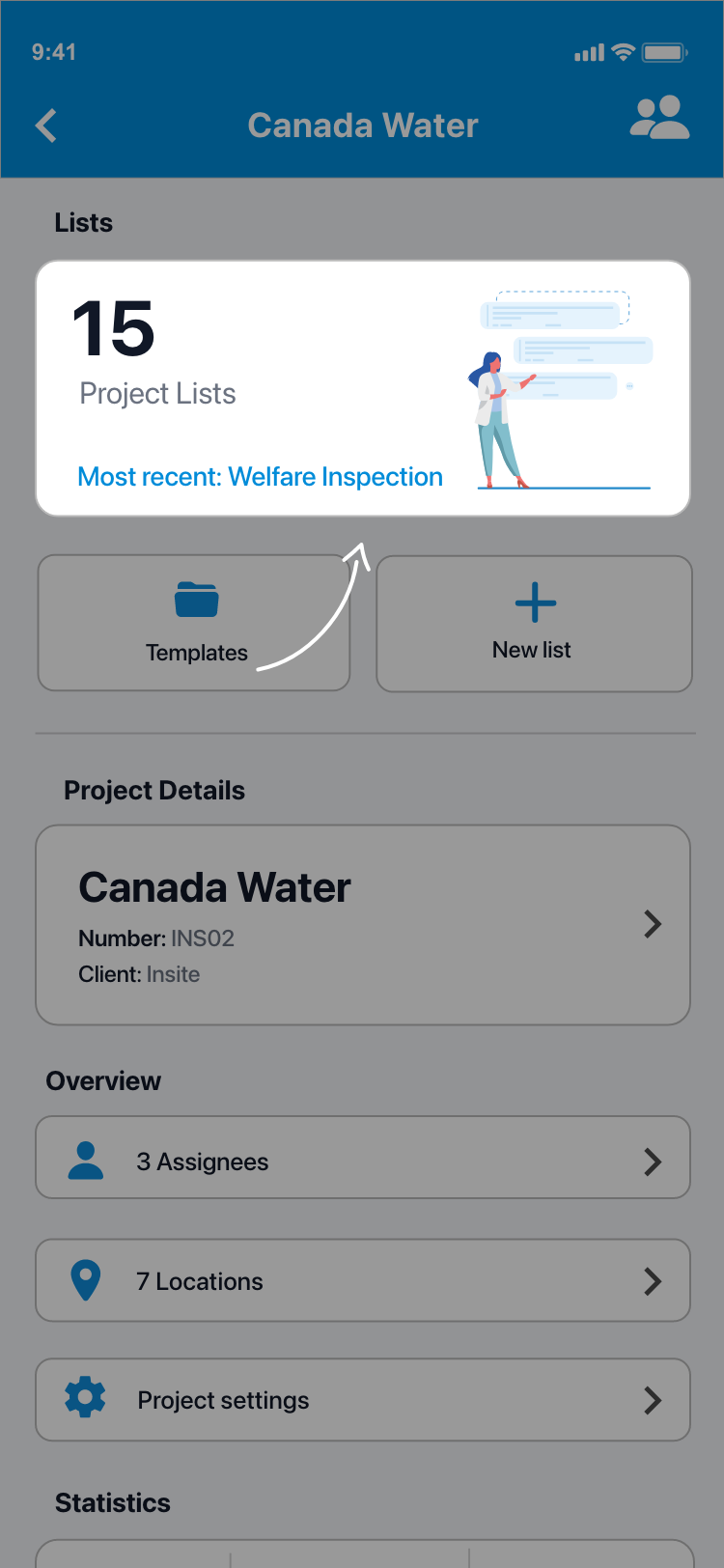
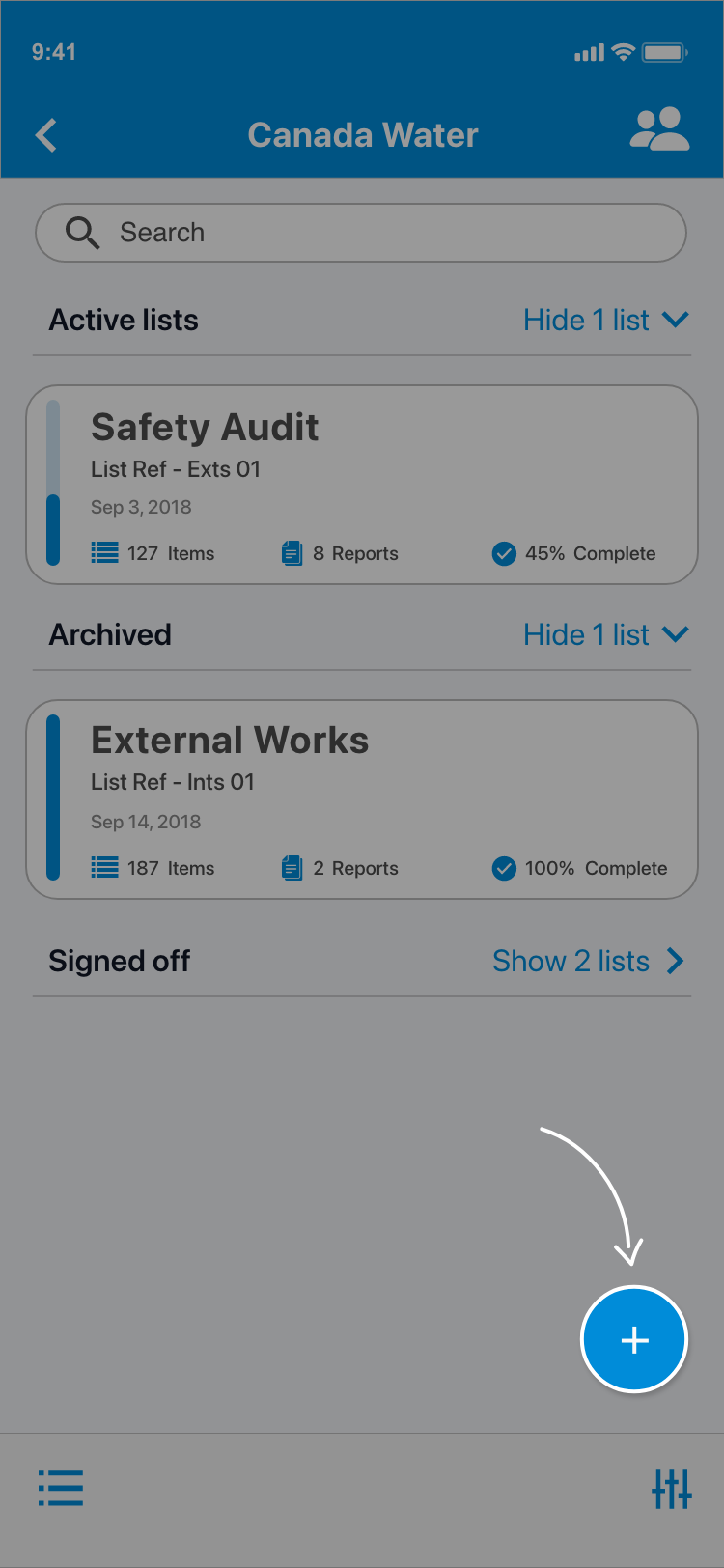
2.4. Alternatively you can create a list by going into your project lists and tapping the Blue ⊕ button in the bottom right-hand corner of the screen.
2.5. Tap Choose template to create a new list from a saved template.
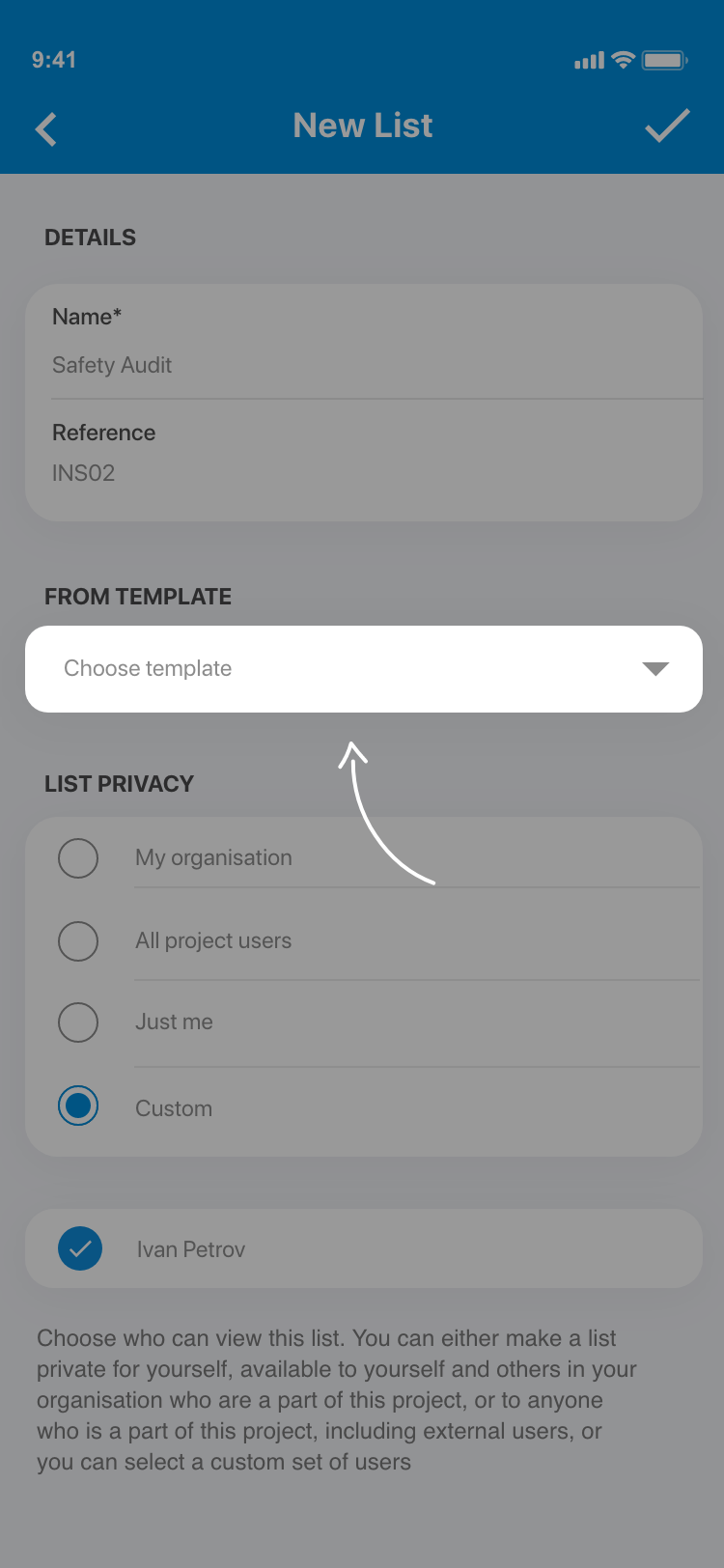
2.6. Choose a template from your saved templates. and tap Done.
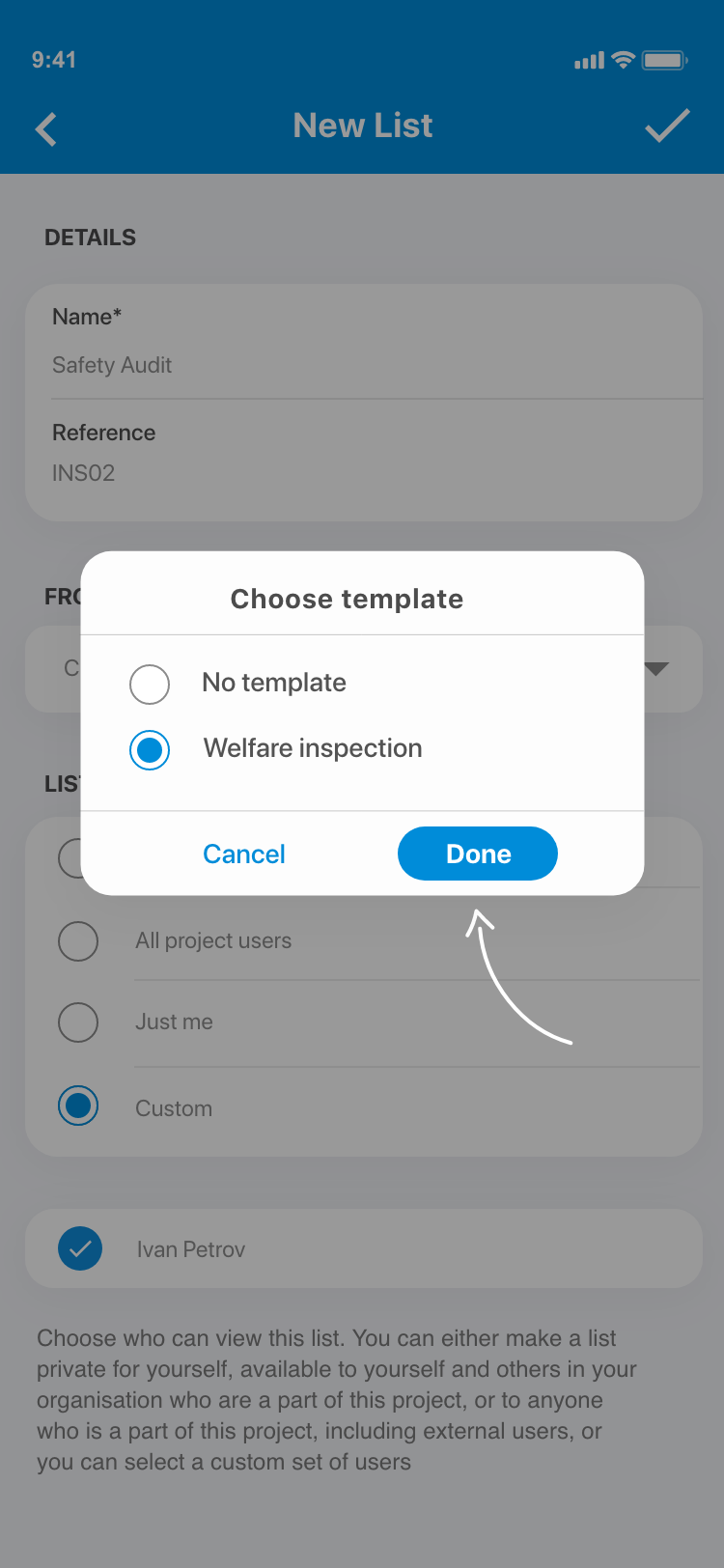
2.7. Enter the details and choose a privacy setting. See Create a list. Tap the ✓ in the top right of your screen when you are done. Your new list will have been created and will be populated with the items from the template.
Comments
0 comments
Please sign in to leave a comment.